Guide: Your Next Line, While the Buyer Is Still Talking
Guide is Salesably's live call coach. It listens to your real sales call and shows the next line to say, grounded in your studio's playbook. It runs on Mac, iPhone and Android, with Windows coming soon.
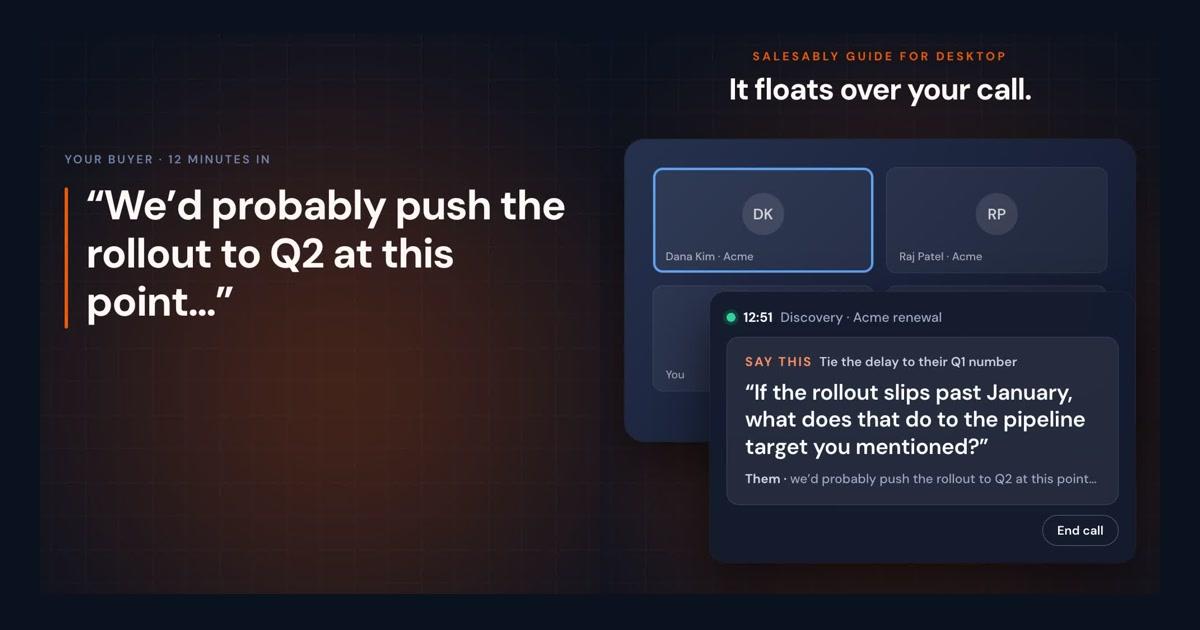
Your reps practice before the call and get scored after it. The part in between is the part nobody helps with. The buyer says "we'd probably push the rollout to Q2," and the rep has a few seconds to find the right question, alone, with a video grid staring back.
Guide is Salesably's live call coach. It listens to the real conversation and puts the next line on screen while the buyer is still talking. It runs on your Mac in a small window that floats over the meeting, and on your phone for calls and meetings away from your desk.
Here it is on a discovery call, in 30 seconds. The meeting and the cues are a demo, not a customer's call:
What Guide does on a call
Guide reads the conversation as it happens and shows one cue at a time. There are four kinds:
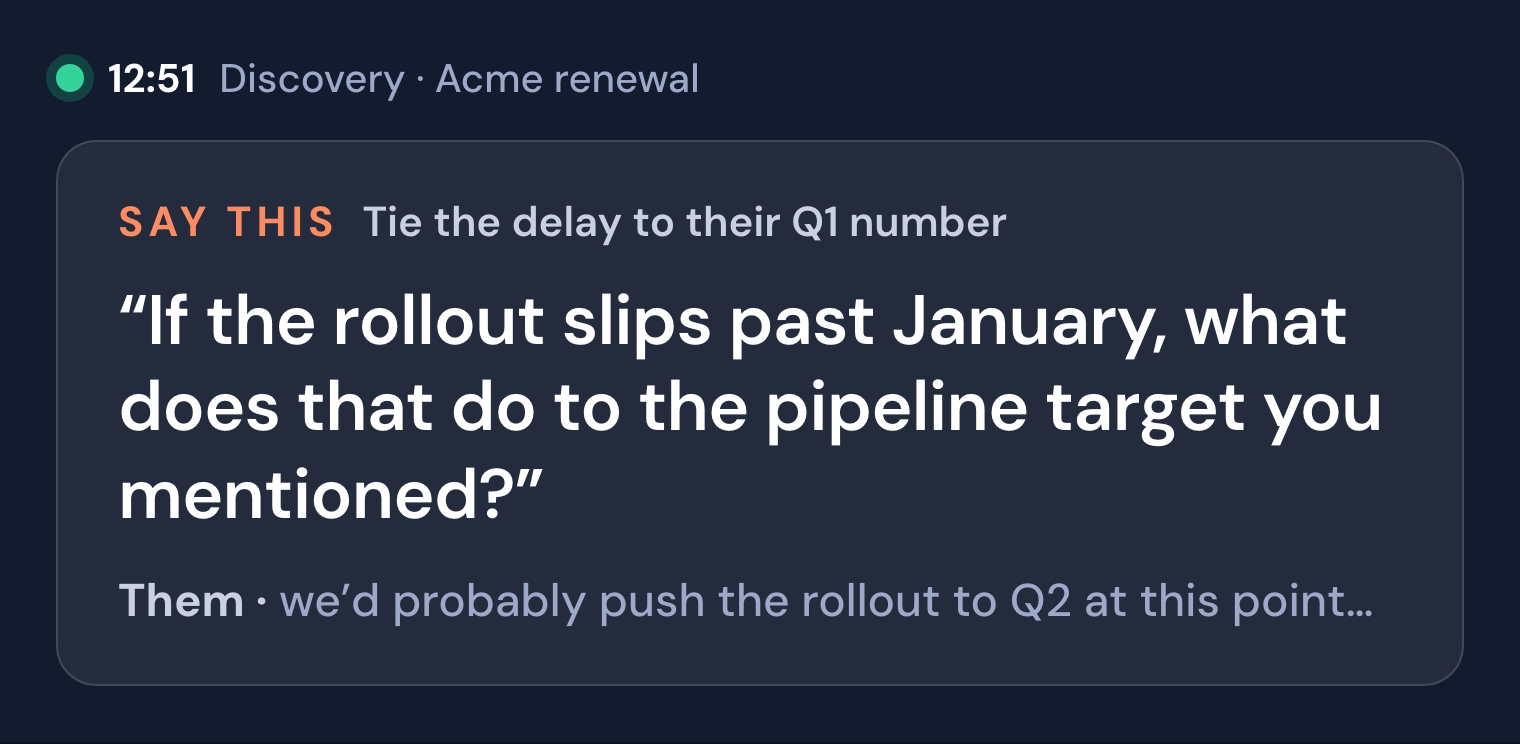
Say this. The exact words to say next, written in the first person so you can read them out loud. Under the line is what the buyer just said.
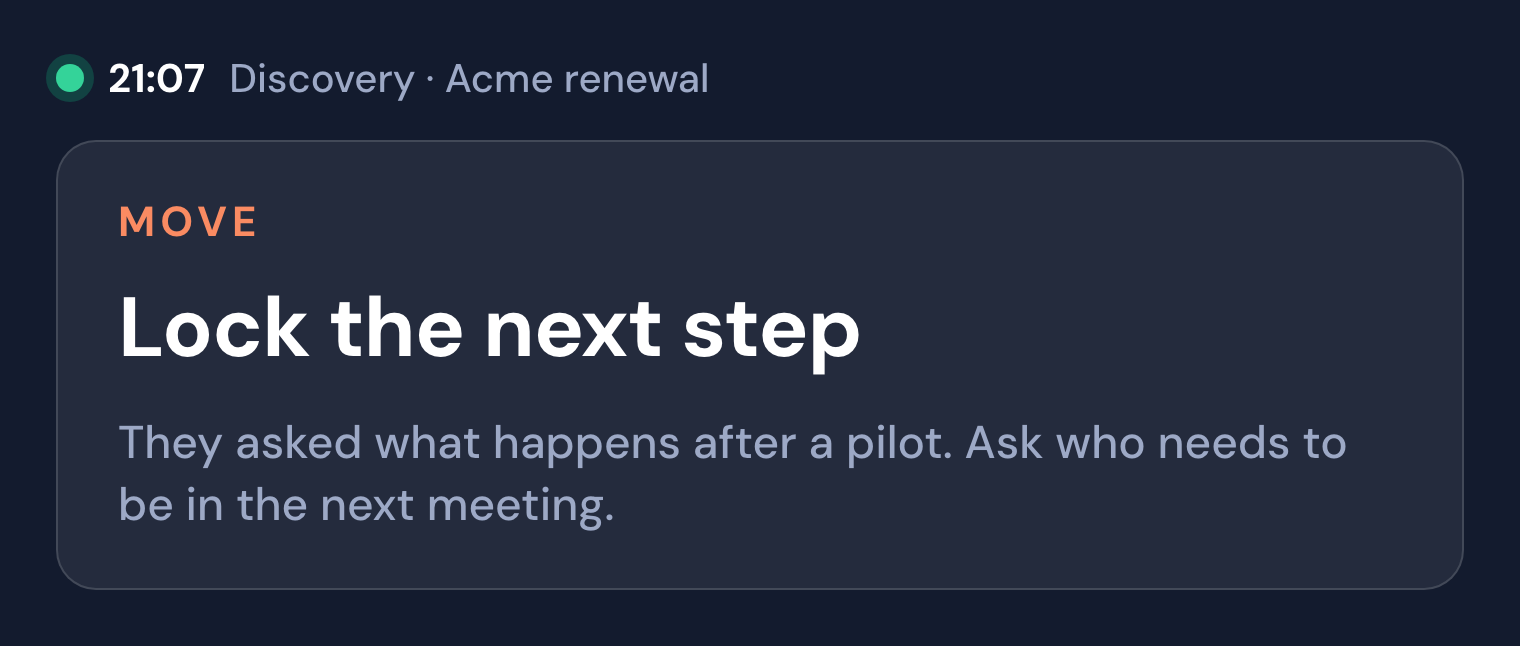
Move. A direction to take the conversation, with the reason for it.
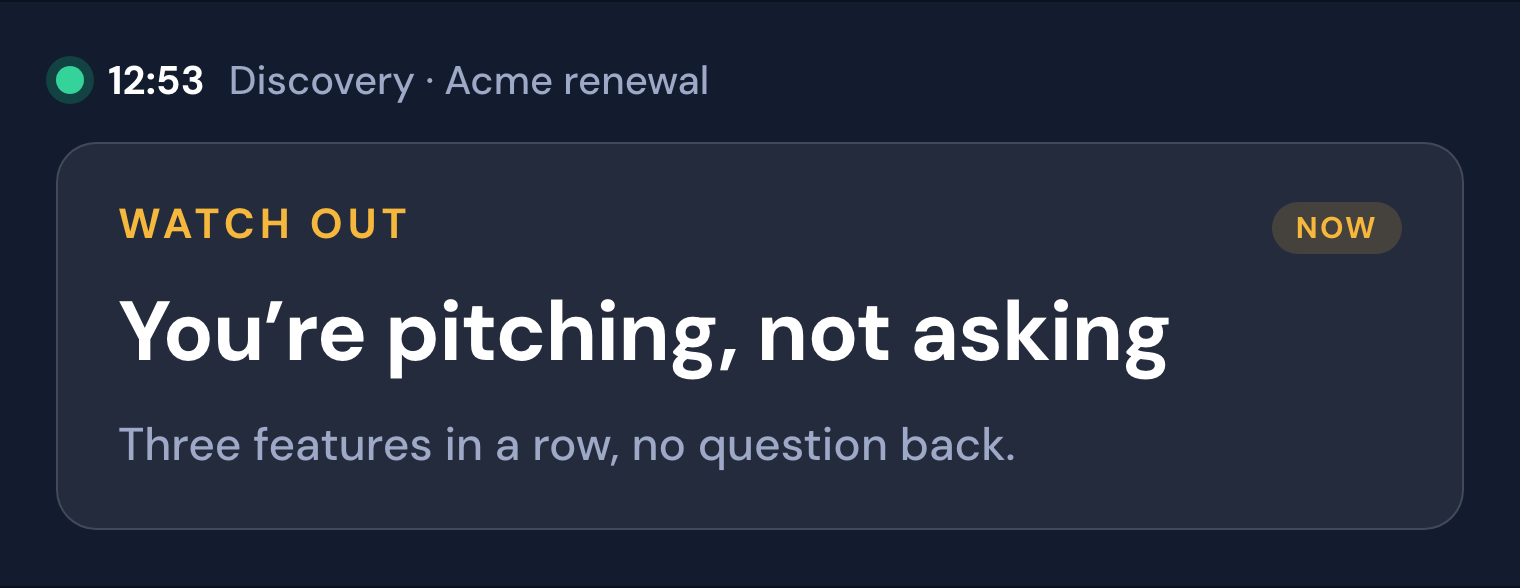
Watch out. A warning about how the call is going, such as three features in a row with no question back.
Answer. A reply to something the buyer just asked. If your studio already has a Q&A that covers the question, Guide shows that answer word for word, the way your team wrote it.
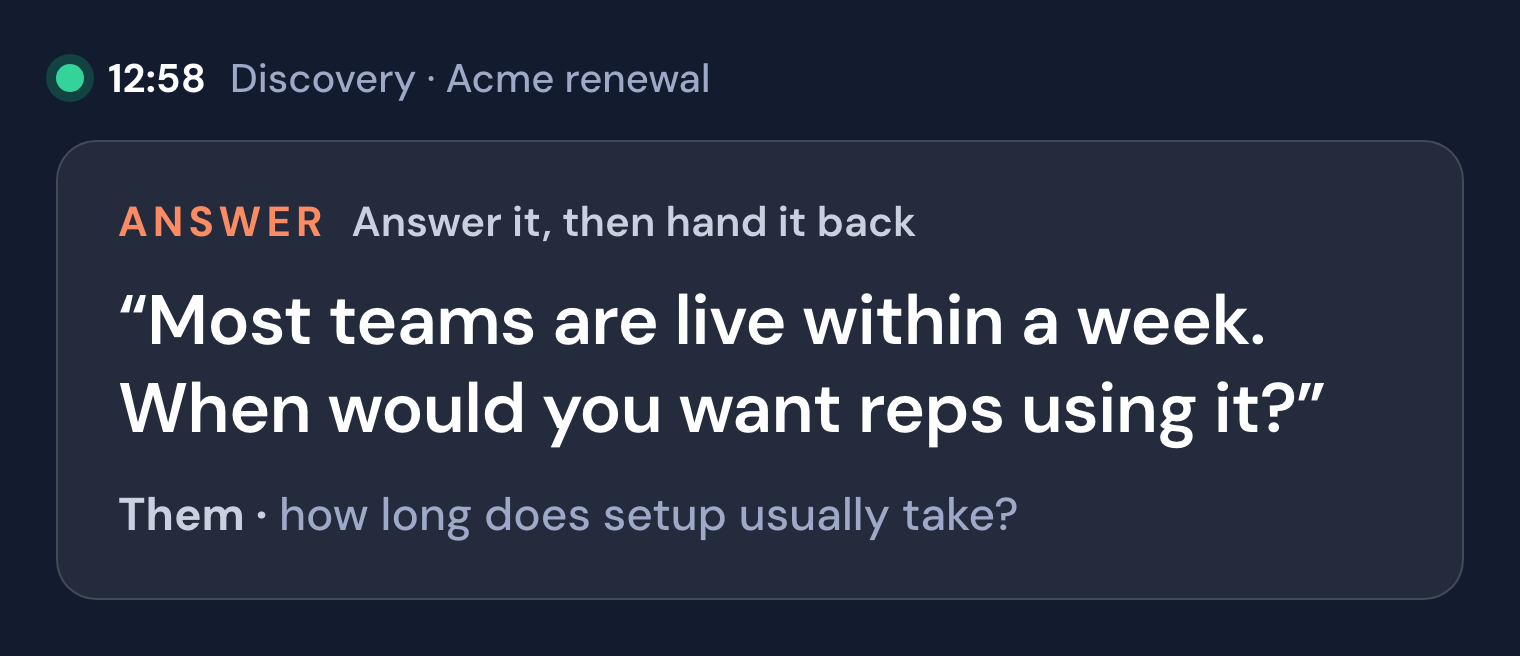
These four are examples from a demo call. A cue that can't wait is marked Now.
Most of the time Guide says nothing. It stays on "Listening…" until a cue would change the next 20 seconds of the call, so the window isn't one more thing to read while the buyer is talking.
It also doesn't make up numbers. Every price, date and product claim in a cue has to come from your studio's positioning or from what was said on the call. When the buyer asks for a figure Guide doesn't have, the cue hands the question back to them.
Guide reads the buyer as well. When a buyer declines without saying no, a Soft no note appears under the cue. It names which of eight kinds it heard, such as a timing delay, a friendly brush-off or an internal handoff, and what that usually means for the deal. On a computer it also shows how the buyer's voice sounded on what they last said, as Their tone: warm, steady or tense.
What Guide knows before you start
Guide coaches from your studio, not from generic sales advice. It reads your positioning, your buyer personas, your glossary and your Q&As when the call starts. Then you tell it as much or as little about this call as you want. Every field is optional:
- Call name. What the saved call is called, like "Intro with Northwind".
- Kind of conversation. Discovery, pitch, objections or another kind your studio has turned on. Leave it on Auto and Guide works it out from the conversation.
- Coach toward a rubric. Pick one of your studio's rubrics for that kind of call, and every cue pushes toward the top of its criteria. Left on Auto, Guide picks the rubric that fits.
- Your prep. Paste your agenda, the questions you want to ask and the next step you're after. Guide tracks which of them the call has covered and brings up the ones still open.
How it works on your Mac
- Get the app. Sign in at app.salesably.ai, open the Guide page and download Guide for Mac. Open it and click Sign in with your browser.
- Say what the call is. Fill in what you want under What's this call?, or skip it all and click Next.
- Allow your microphone. Guide hears you through your microphone and the other side through your computer's sound, so it follows both halves of the conversation. You don't share a tab or add anything to the meeting. Two meters show it hears you and the meeting.
- Start. Start and record saves the call. It first shows you a line to read so you can ask the buyer's permission, and you confirm that they agreed or that the call is internal only. Start without recording coaches the call and keeps no audio or transcript.
- Take the call. The window shrinks to a panel that stays on top of your meeting. Press ⌘⇧G to hide or show it from any app.
- Ask for help when you want it. Click Give me a line and Guide writes one on the spot. Open Ask to type a question about the call so far, or pick a starter like "What have they asked that I haven't answered?" Earlier cues and the live transcript are one click away.
- End the call. Click End & save. Guide also ends itself once the call has wrapped up, so a forgotten session doesn't keep listening.
A note on screen sharing: Guide asks your computer to keep its window out of screen shares, but that is best effort. When it matters, present one window instead of your whole screen.
On your phone
Guide has its own tab in the Salesably Recorder app on iPhone and Android. The setup is the same four fields, the cues are the same four kinds, and Give me a line is there when you want one. Soft no notes show up too.
A phone hears through its microphone, so it fits meetings in person, or a call playing on a speaker beside it. Set the phone where you can see it and the screen stays awake for the whole conversation.
After the call
When the call ends, Guide writes a debrief: a short summary, the key moments, and the next steps. Any soft nos it heard are listed with the time each one came up.
A recorded call is saved to your studio and scored in Conversation Analysis a few minutes later, against the same rubric Guide coached toward. Each cue appears on the transcript at the moment Guide gave it, with what the rep did with it: Used, Adapted, Not used or You got there first.
That last part is for managers. You see what the rep said, what Guide suggested, and whether the suggestion made it into the conversation.
Where to start
Three easy first calls:
- An internal call. Run Guide on a team meeting and choose internal only when it asks about recording. You see how the cues read with nothing at stake.
- A call you prepped for. Paste your prep and watch Guide hold you to your own questions.
- A call with no setup. Leave everything on Auto and click Start without recording. Halfway through, open Ask and try "What did I miss?"
Try it
Guide is available now on Mac, iPhone and Android for anyone with a Salesably studio. Windows is coming soon. Sign in at app.salesably.ai and open the Guide page to download it.
New to Salesably? Book a demo. See how you sound different.
Author

Vidal Graupera
Vidal is the Founder of Salesably, focused on using AI to elevate human skills in sales training and enablement. He has extensive experience in building platforms that leverage artificial intelligence for sales improvements.
Table of Contents
Free Sales Training Guide
Download our comprehensive guide to building effective sales training programs that drive results.
AI Sales Training Template: 2026 Edition
PDF Guide • 16 pages • 3.0 MB
We respect your privacy. Unsubscribe at any time.